Best Apps to Manage Screen Time in 2026 (Honest Comparison)
Disclosure: Cursed Screen is our product. Every other app on this list was evaluated from publicly available data — Play Store listings, official websites, and user reviews. We haven’t tested competitors firsthand but have documented our sources throughout. Last reviewed: April 2026.
There are dozens of screen time apps on the Play Store. Most of them do one of four things: block apps, add friction, track usage, or gamify focus. A few do something genuinely different. This guide covers the ones worth knowing about, organized by approach, with honest assessments of where each one breaks down.
The quick comparison
| App | Approach | Price | Rating | Platforms | Works while scrolling? |
|---|---|---|---|---|---|
| AppBlock | Blocking | Freemium, $30/yr | 4.7 (200K) | Android, iOS, Chrome | No |
| Freedom | Blocking | $40/yr or $199 lifetime | 4.1 (7K) | Android, iOS, Mac, Win, Chrome, Linux | No |
| ScreenZen | Friction | Free | 4.7 (25K) | Android, iOS, Mac, Win | No |
| One Sec | Friction | Freemium, €15/yr | 4.6 (32K) | Android, iOS, Mac, Win, Linux, Chrome | No |
| Forest | Gamification | Free (ads), $4 iOS | 4.5 (10M+) | Android, iOS, Chrome | No |
| Opal | Blocking + Gamification | $100/yr or $400 lifetime | 4.3 (limited) | iOS, macOS, Android (limited) | No |
| Cursed Screen | Visual deterrence | Free trial, then subscription or lifetime | 4.7 | Android | Yes |
Approach 1: App blocking
AppBlock
The most popular app blocker on Android. 15 million users. 4.7 rating. AppBlock lets you block specific apps and websites by schedule, location, Wi-Fi network, or usage limits. The standout feature is Strict Mode: once you activate a block, you can’t disable it until the timer expires. PIN protection prevents uninstalling during a session.
What’s good: Strict Mode is genuinely hard to bypass during a session. The schedule and location-based triggers are more flexible than most blockers. Supports blocking in 20+ browsers. The free tier is useful, not just a demo.
What breaks: Strict Mode is opt-in. You have to activate it while motivated. Skip it once and you have full access to everything you’re trying to avoid. Also, blocking individual apps doesn’t stop you from migrating to unblocked apps. Block TikTok, open YouTube. Block YouTube, open Reddit. The compulsion moves; it doesn’t stop.
Best for: People who need hard walls during specific time blocks (work hours, study sessions) and who consistently enable Strict Mode.
Freedom
The premium cross-device blocker. Works across Android, iOS, Mac, Windows, Chrome, and Linux. Syncs blocking sessions across all your devices simultaneously, which solves the “just use a different device” workaround. Includes focus sounds (Brain.fm), scheduling, and locked mode.
What’s good: Cross-device sync is the killer feature. If your phone, laptop, and tablet are all blocked simultaneously, there’s nowhere to migrate. Focus sounds are a nice addition for work sessions.
What breaks: $40/year with no meaningful free tier (just a trial). That’s expensive for an app you might disable within a month. Uses a VPN on mobile, which conflicts with work VPNs and can drain battery. And the fundamental blocker problem remains: when the session ends, you binge.
Best for: People who use multiple devices and need synchronized blocking. Worth the price if you commit to locked sessions.
Approach 2: Friction
ScreenZen
Free. No ads. No in-app purchases. Adds a customizable pause before you open distracting apps. You can set daily open limits per app, session time limits, and “mindful prompt” messages that ask “is this important?” before letting you in. Also blocks websites via Accessibility Service.
What’s good: It’s free and genuinely good. The pause before opening is enough to break the autopilot for many people. Daily open limits create awareness of how many times you reach for an app. The 4.7 rating with 25K reviews is earned.
What breaks: Friction fades. After a few weeks, tapping through the pause becomes automatic. You stop reading the prompts. The friction becomes a loading screen. And like all pre-opening interventions, it does nothing once you’re inside the app scrolling. This is the same reason screen time limits fail — they fire at the door and trust you to make a good call once you’re in.
Best for: First-time screen time app users. Start here. If friction is enough for you, it’s the best free option available.
One Sec
Similar concept to ScreenZen but with more intervention types. Breathing exercises. Math problems. “Follow the dot” tasks. Emotion tracking. The variety keeps the friction from becoming routine as quickly. Free for one app, Pro from €15/year.
What’s good: Multiple intervention types slow the adaptation that kills friction apps. The breathing exercise has actual calming effects beyond just delaying you. One Sec reports a 57% reduction in app opens. The science-backed approach (studied by the Max Planck Institute) adds credibility.
What breaks: Free tier is limited to one app, which is barely useful. The interventions still only trigger when you open an app — not during scrolling. And at €15/year, it’s not much cheaper than AppBlock’s blocking approach.
Best for: People who want friction that stays effective longer than ScreenZen’s, and who are willing to pay for the variety.
Approach 3: Gamification
Forest
Plant a virtual tree. Set a timer. If you leave the app, the tree dies. Earn coins to plant real trees through Trees for the Future. Over 5 million real trees planted by users.
What’s good: The emotional attachment to the tree is surprisingly effective. Killing a tree you’ve been growing for 45 minutes feels genuinely bad. The real-tree planting adds meaning beyond the game. Social “Plant Together” mode adds accountability.
What breaks: It only works during active timer sessions. Forest doesn’t do anything about the 3 hours you spend scrolling after the timer ends. And it’s fundamentally a Pomodoro timer with a skin — it doesn’t address the underlying phone addiction.
Best for: Students and people who respond to gamification. Works well for structured study or work sessions.
Opal
Focus sessions with gamification: focus scores, streaks, leaderboards, gems. Originally iOS-only, recently launched a limited Android version. Uses a VPN to block apps.
What’s good: The gamification loop is more engaging than Forest’s. Focus Score creates a daily metric to improve. The iOS version is polished and well-designed.
What breaks: $100/year. That’s the most expensive app on this list by a wide margin. The Android version is early-stage and buggy — users report battery drain, excessive data usage (8GB+ in weeks), and inconsistent blocking. The VPN approach raises privacy concerns.
Best for: iOS users willing to pay a premium. Android users should wait for the app to mature.
Approach 4: Visual deterrence
Cursed Screen
This is our product. Being transparent about that.
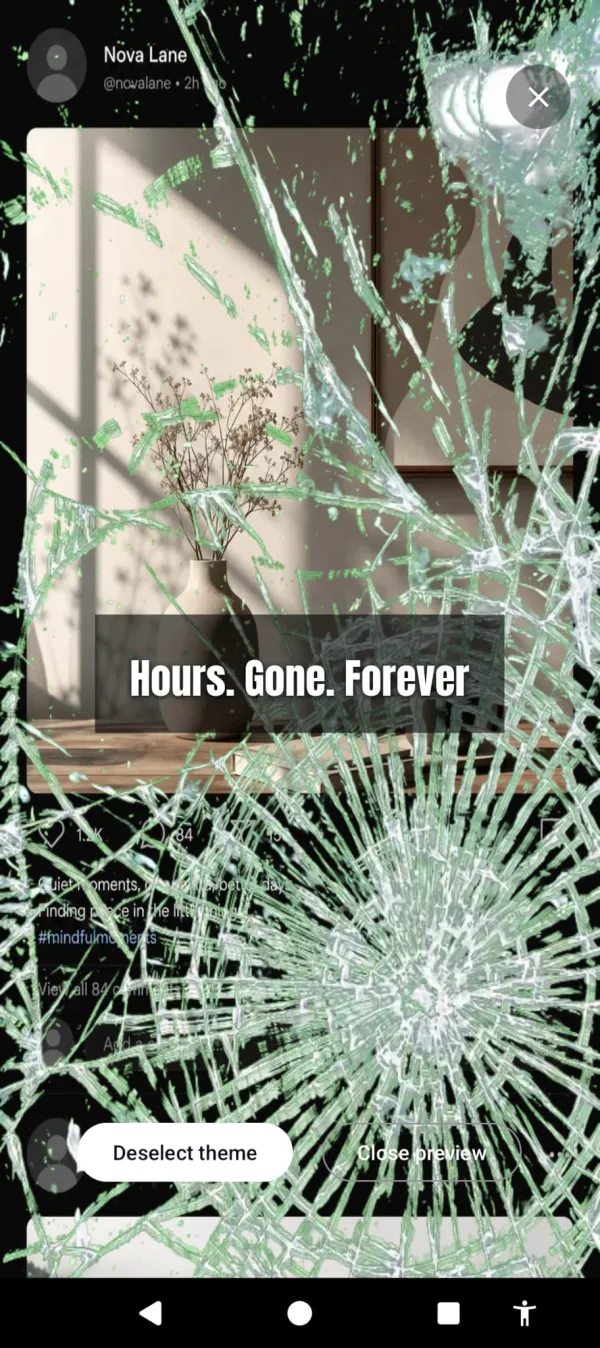
Cursed Screen doesn’t block apps, add friction before opening them, or gamify avoidance. After a configurable grace period, animated overlays creep in from the edges of your screen. Creeping insects. Flames. Glass splintering across the screen. The longer you use your phone, the worse it looks. Nothing is blocked. Everything works. The phone just gets progressively ugly.
Glass splintering across the screen the longer you stay. Everything still works. It just looks wrong.
What’s good: Works while you’re scrolling, not just before you open the app. That’s the gap every other approach on this list misses. No VPN. No blocklist to maintain. No adaptation problem — you don’t normalize bugs on your screen the way you normalize a breathing exercise. Session-based tracking with decay means putting the phone down immediately starts improving the overlay.
What breaks: Android only. No iOS version. The overlays are edge-only, so the center of your screen stays clear — which means a determined scroller can focus on the center and ignore the edges. Doesn’t help if you genuinely don’t care what your screen looks like (some people don’t). No cross-device support.
Best for: People who’ve tried blocking and friction and kept disabling them. People who need something that works during the scroll, not before it.
Positive mode flashes aurora and sunlight with messages like “the world misses you” for people who prefer encouragement over punishment.
Free trial on Android. Subscribe monthly or annually, or pay once for lifetime access.
Which one should you try?
Never tried a screen time app? Start with ScreenZen. It’s free, it’s good, and friction might be enough for you.
Tried friction, it faded? Try AppBlock with Strict Mode. The hard wall is a step up.
Tried blocking, kept disabling it? Try Cursed Screen. Different mechanism entirely. Nothing to disable.
Need cross-device blocking? Freedom is the only real option.
Student who likes gamification? Forest during study sessions.
iOS with budget? Opal if you’re willing to pay $100/year.
There’s no single best screen time app. There’s only the one that matches your failure mode. Figure out why previous approaches didn’t stick, and choose the one that addresses that specific reason. For a step-by-step plan beyond app selection, read how to reduce screen time — and if you want the philosophy behind why apps alone don’t fix anything, digital minimalism is the longer answer.
Reduce your screen time — without blocking anything
Cursed Screen makes your phone progressively uglier the longer you use it. No blocking, no willpower needed — you'll want to put it down.
Get Cursed Screen on Google Play