Best App Blockers for Android in 2026
Disclosure: Cursed Screen is our product. Every other app was evaluated from publicly available data. Last reviewed: April 2026.
App blockers are the most intuitive answer to phone addiction. Can’t stop opening TikTok? Block TikTok. Problem solved. Except 4,400 people search for “app blocker” every month, which means a lot of people are still looking, which means the blockers they already tried didn’t stick.
Here’s every Android app blocker worth knowing about, what each one actually does, and the honest reason most people stop using them.
How app blockers work on Android
Android app blockers use one of two system-level mechanisms:
Accessibility Service. The app monitors which app is in the foreground. When you open a blocked app, the blocker detects it and shows an overlay or redirects you. This is how AppBlock and ScreenZen work. It’s reliable, doesn’t require a VPN, and works across all apps. The downside: Android can kill Accessibility Services in the background on some manufacturers (Samsung, Xiaomi, Huawei), requiring battery optimization workarounds.
Local VPN. The app routes your network traffic through a local VPN that filters connections to blocked apps and websites. This is how Freedom works. It’s thorough — blocks both apps and web versions. The downside: you can only run one VPN at a time on Android, so it conflicts with work VPNs and privacy VPNs.
The app blockers
AppBlock — The strict one
Rating: 4.7 (200K reviews) | Price: Freemium, $5/mo or $30/yr | Downloads: 15M+
The most popular app blocker on Android. Block apps and websites by schedule, location, Wi-Fi network, or usage limits. The standout feature: Strict Mode locks your block in place with a PIN. Once active, you can’t disable it, change settings, or uninstall the app until the timer expires.
Works because: Strict Mode is genuinely hard to bypass during a session. The block is real. You physically cannot open Instagram.
Fails because: Strict Mode is opt-in. On the days you need it most (tired, stressed, bored), you don’t enable it. And when the strict session ends, you binge. Total screen time might not change; it just shifts to non-blocked hours.
Freedom — The cross-platform one
Rating: 4.1 (7K reviews) | Price: $40/yr or $199 lifetime | Downloads: 500K+
VPN-based blocking across Android, iOS, Mac, Windows, Chrome, and Linux. Block apps, websites, or the entire internet. Sessions sync across all your devices simultaneously. Includes focus sounds from Brain.fm and session annotations.
Works because: Cross-device sync eliminates the “just use a different device” workaround. If your phone, laptop, and tablet are all blocked, there’s nowhere to go.
Fails because: $40/year with no real free tier. The VPN approach conflicts with work VPNs and drains battery on mobile. And the highest-reviewed complaint: sessions can be bypassed by turning off the VPN in Android settings.
ScreenZen — The free friction one
Rating: 4.7 (25K reviews) | Price: Free (no ads, no IAP) | Downloads: 1M+
Not a traditional blocker. Adds a customizable pause before opening apps. Wait timers, daily open limits, and “is this important?” prompts. Also blocks websites via Accessibility Service.
Works because: It’s free and genuinely good. The friction reduces casual app opens without creating a wall to fight. Daily open limits create awareness of how many times you reach for an app.
Fails because: Friction fades. The pause becomes automatic within weeks. And once you’re past the pause, nothing stops a 2-hour scroll. The intervention is at the door; inside, you’re on your own.
One Sec — The breathing one
Rating: 4.6 (32K reviews) | Price: Free (1 app), Pro €15/yr | Downloads: 1M+
Forces a breathing exercise or task (math problem, follow-the-dot, type random text) before opening an app. Multiple intervention types keep the friction from becoming routine as quickly.
Works because: The variety of interventions slows adaptation. A breathing exercise feels different from a math problem, so the friction stays fresh longer than a simple countdown. Claims 57% reduction in app opens.
Fails because: Free tier is limited to one app. Like ScreenZen, it only intervenes at the door. And the interventions still become routine eventually — you just take longer to adapt because there are more of them.
Digital Wellbeing — The built-in one
Rating: 3.5 | Price: Free (pre-installed) | Downloads: 1B+ (comes with Android)
Google’s built-in tool. App timers, Bedtime Mode (grayscale + DND), Focus Mode (pause specific apps), usage dashboard. Already on your phone.
Works because: No installation needed. Focus Mode can pause a set of apps simultaneously, which is better than per-app timers.
Fails because: Google has ignored Digital Wellbeing for years. App timers are bypassed with two taps. No strict mode. No lock. The tool assumes you’ll obey a polite notification, and you won’t.
Why app blockers keep getting uninstalled
Every blocker on this list shares the same structural problem: the user is the admin.
You installed the blocker. You configured the blocklist. You know the PIN (or set it yourself). You can disable Accessibility Service in Android settings. You can uninstall the app. You can turn off the VPN.
Strict Mode in AppBlock is the closest any blocker gets to solving this, and it works — during the session. Between sessions, you’re back to being the admin. One tired evening where you skip Strict Mode undoes the whole pattern.
The second problem: app blockers treat individual apps as the enemy. Block TikTok and you scroll Instagram. Block both and you open YouTube Shorts. Block all three and you find Reddit. The compulsion migrates. You’re playing whack-a-mole with apps, but the real problem is the phone in your hand. The same pattern shows up with game blockers and site blockers — you switch surfaces, not behaviors.
The approach that doesn’t block anything
Cursed Screen takes a different approach entirely. Nothing is blocked. No apps are restricted. No VPN. No Accessibility Service intercepting your app launches.
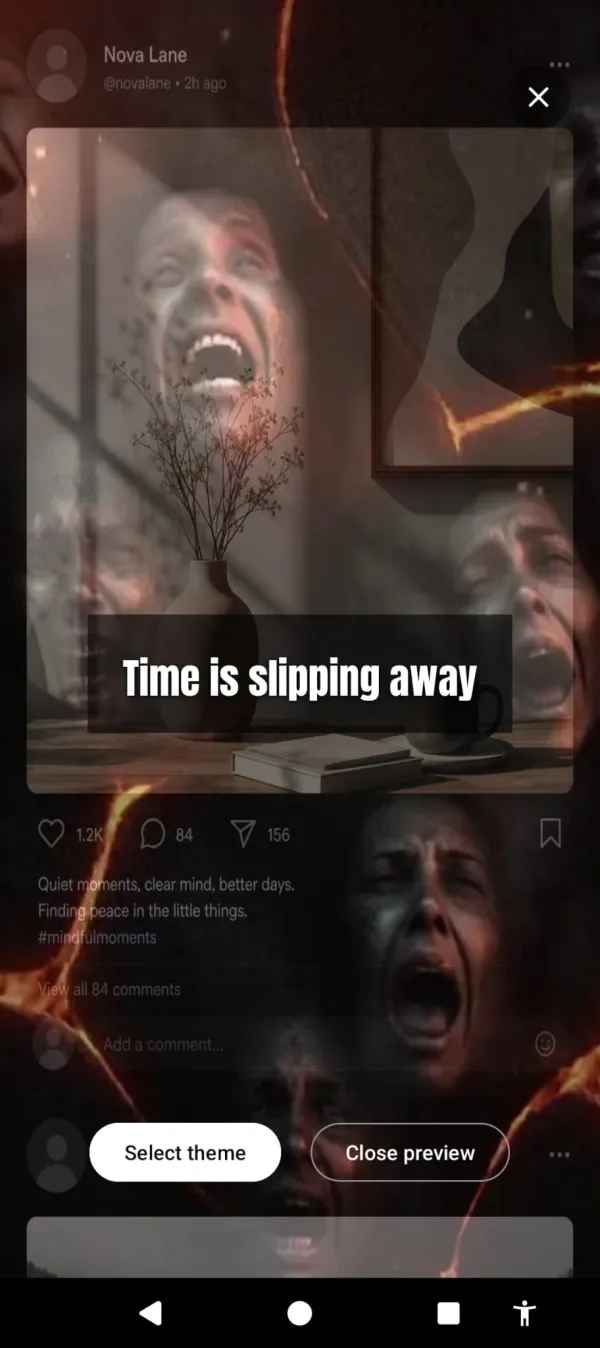
Instead, after a configurable grace period, your phone’s screen progressively fills with visual overlays. Glass fracturing across the display. A red glow seeping in from the edges. The longer you use your phone, the worse it looks. Put it down and the overlays fade.
The longer you scroll, the more the fire creeps in. Nothing to disable, because nothing is blocked.
Why it survives where blockers don’t:
- Nothing to disable. There’s no block to bypass, no timer to dismiss, no Strict Mode to skip enabling.
- Works across all apps simultaneously. Switch from TikTok to Instagram to YouTube — the overlay follows because it tracks total screen time.
- Works during the scroll, not before it. App blockers guard the door. Cursed Screen makes the room uncomfortable.
- No VPN conflicts. No Accessibility Service issues on Samsung/Xiaomi.
It uses TYPE_ACCESSIBILITY_OVERLAY for rendering (not for monitoring your apps), so it doesn’t interfere with other apps’ Accessibility features.
For people who prefer encouragement over punishment, positive mode flashes aurora and sunlight with “the world misses you” between scrolling sessions.
What to try
First time trying an app blocker? ScreenZen. Free, effective, low-commitment.
Need a hard wall? AppBlock with Strict Mode.
Need cross-device? Freedom.
Tried blockers and kept disabling them? Cursed Screen. Try it free. Subscribe monthly or annually, or pay once for lifetime access. Different mechanism. Nothing to disable.
If you want a broader survey of the category — friction, gamification, blocking, visual deterrence — read the full breakdown of apps to manage screen time. For parents wondering if these apps work on teens, the answer is in our piece on parental control alternatives.
The best app blocker is the one that survives your worst evening. If no blocker has survived yours yet, maybe the answer isn’t a better blocker.
Reduce your screen time — without blocking anything
Cursed Screen makes your phone progressively uglier the longer you use it. No blocking, no willpower needed — you'll want to put it down.
Get Cursed Screen on Google Play